ocrClickOnText
Click on an element based on the provided texts. The command will search for the provided text and try to find a match based on Fuzzy Logic from Fuse.js. This means that if you might provide a selector with a typo, or the found text might not be a 100% match it will still try to give you back an element. See the logs below.
Usage
await browser.ocrClickOnText({ text: "Start3d" });
Output
Logs
# Still finding a match even though we searched for "Start3d" and the found text was "Started"
[0-0] 2024-05-25T05:05:20.096Z INFO webdriver: COMMAND ocrClickOnText(<object>)
......................
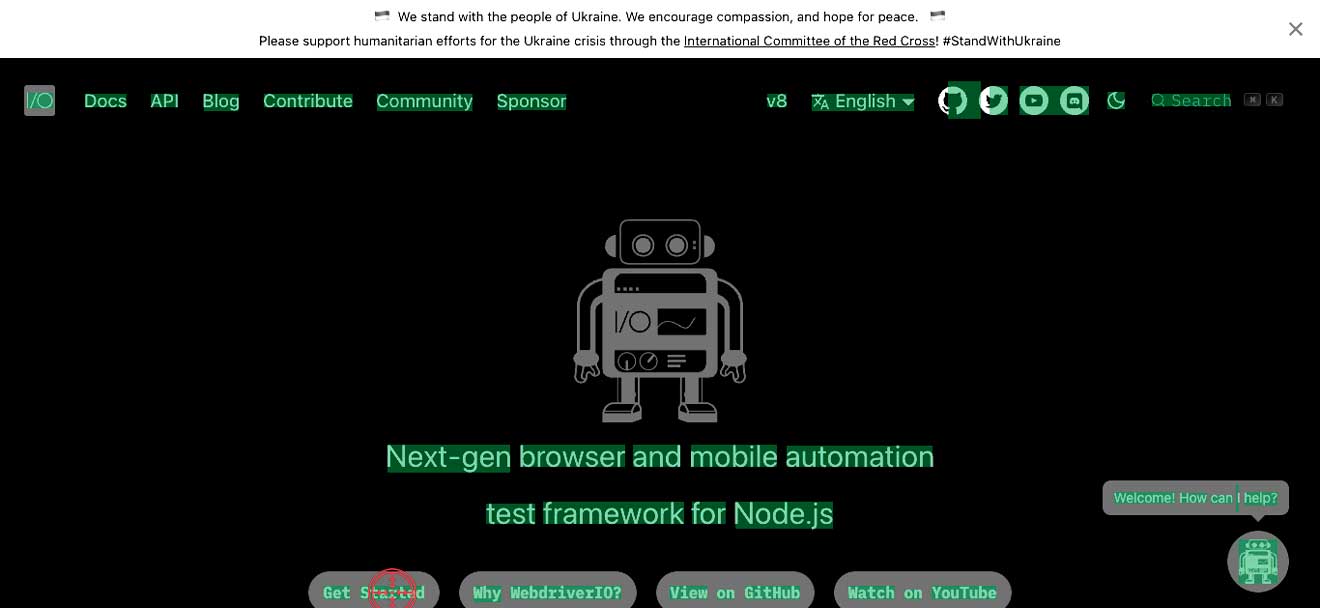
[0-0] 2024-05-25T05:05:21.022Z INFO @wdio/ocr-service:ocrGetElementPositionByText: Multiple matches were found based on the word "Start3d". The match "Started" with score "85.71%" will be used.
Image
You will find an image in your (default)imagesFolder with a target to show you where the module has clicked.
Options
text
- Type
string- Required
yes
The text you want to search for to click on.
Example
await browser.ocrClickOnText({ text: "WebdriverIO" });
clickDuration
- Type
number- Default
500 milliseconds- Required
no
This is the duration of the click. If you want you can also create a "long click" by increasing the time.
Example
await browser.ocrClickOnText({
    text: "WebdriverIO",
    clickDuration: 3000, // This is 3 seconds
});
contrast
- Type
number- Default
0.25- Required
no
The higher the contrast, the darker the image and vice versa. This can help to find text in an image. It accepts values between -1 and 1.
Example
await browser.ocrClickOnText({
    text: "WebdriverIO",
    contrast: 0.5,
});
haystack
- Type
number- Required
WebdriverIO.Element | ChainablePromiseElement | Rectangle
This is the search area in the screen where the OCR needs to look for text. This can be an element or a rectangle containing x, y, width and height
Example
await browser.ocrClickOnText({
    text: "WebdriverIO",
    haystack: $("elementSelector"),
});

// OR
await browser.ocrClickOnText({
    text: "WebdriverIO",
    haystack: await $("elementSelector"),
});

// OR
await browser.ocrClickOnText({
    text: "WebdriverIO",
    haystack: {
        x: 10,
        y: 50,
        width: 300,
        height: 75,
    },
});
language
- Type
string- Default
eng- Required
No
Example
import { SUPPORTED_OCR_LANGUAGES } from "@wdio/ocr-service";
await browser.ocrClickOnText({
    text: "WebdriverIO",
    // Use Dutch as a language
    language: SUPPORTED_OCR_LANGUAGES.DUTCH,
});
relativePosition
- Type
object- Required
no
You can click on the screen relative to the matching element. This can be done based on relative pixels above, right, below or left from the matching element
The following combinations are allowed
- single properties
above+leftorabove+rightbelow+leftorbelow+right
The following combinations are NOT allowed
aboveplusbelowleftplusright
relativePosition.above
- Type
number- Required
no
Click x pixels above the matching element.
Example
await browser.ocrClickOnText({
    text: "WebdriverIO",
    relativePosition: {
        above: 100,
    },
});
relativePosition.right
- Type
number- Required
no
Click x pixels right from the matching element.
Example
await browser.ocrClickOnText({
    text: "WebdriverIO",
    relativePosition: {
        right: 100,
    },
});
relativePosition.below
- Type
number- Required
no
Click x pixels below the matching element.
Example
await browser.ocrClickOnText({
    text: "WebdriverIO",
    relativePosition: {
        below: 100,
    },
});
relativePosition.left
- Type
number- Required
no
Click x pixels left from the matching element.
Example
await browser.ocrClickOnText({
    text: "WebdriverIO",
    relativePosition: {
        left: 100,
    },
});
fuzzyFindOptions
You can alter the fuzzy logic to find text with the following options. This might help find a better match
fuzzyFindOptions.distance
- Type
number- Default
100- Required
no
Determines how close the match must be to the fuzzy location (specified by location). An exact letter match which is distance characters away from the fuzzy location would score as a complete mismatch. A distance of 0 requires the match to be at the exact location specified. A distance of 1000 would require a perfect match to be within 800 characters of the location to be found using a threshold of 0.8.
Example
await browser.ocrClickOnText({
    text: "WebdriverIO",
    fuzzyFindOptions: {
        distance: 20,
    },
});
fuzzyFindOptions.location
- Type
number- Default
0- Required
no
Determines approximately where in the text is the pattern expected to be found.
Example
await browser.ocrClickOnText({
    text: "WebdriverIO",
    fuzzyFindOptions: {
        location: 20,
    },
});
fuzzyFindOptions.threshold
- Type
number- Default
0.6- Required
no
At what point does the matching algorithm give up. A threshold of 0 requires a perfect match (of both letters and location), a threshold of 1.0 would match anything.
Example
await browser.ocrClickOnText({
    text: "WebdriverIO",
    fuzzyFindOptions: {
        threshold: 0.8,
    },
});
fuzzyFindOptions.isCaseSensitive
- Type
boolean- Default
false- Required
no
Whether the search should be case sensitive.
Example
await browser.ocrClickOnText({
    text: "WebdriverIO",
    fuzzyFindOptions: {
        isCaseSensitive: true,
    },
});
fuzzyFindOptions.minMatchCharLength
- Type
number- Default
2- Required
no
Only the matches whose length exceeds this value will be returned. (For instance, if you want to ignore single character matches in the result, set it to 2)
Example
await browser.ocrClickOnText({
    text: "WebdriverIO",
    fuzzyFindOptions: {
        minMatchCharLength: 5,
    },
});
fuzzyFindOptions.findAllMatches
- Type
number- Default
false- Required
no
When true, the matching function will continue to the end of a search pattern even if a perfect match has already been located in the string.
Example
await browser.ocrClickOnText({
    text: "WebdriverIO",
    fuzzyFindOptions: {
        findAllMatches: 100,
    },
});
