# Video Reporter
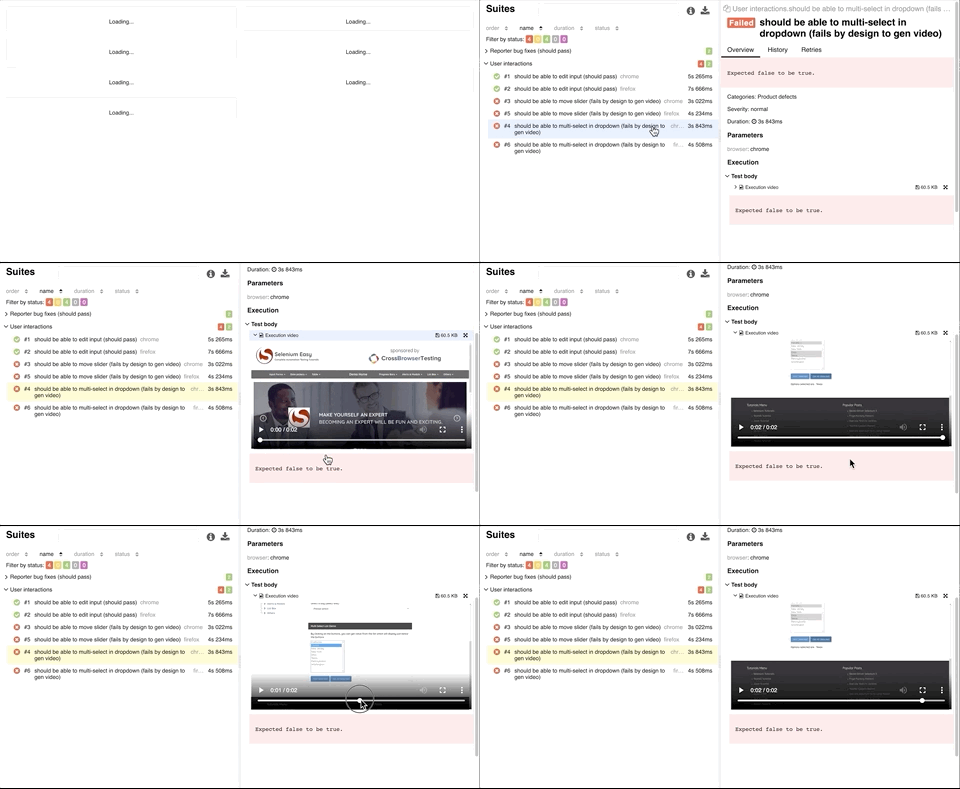
> Create a video screen capture of your tests and enhance your Allure reporting easily!
This is a [WebdriverIO](https://webdriver.io/) reporter that generates videos of your test executions. If you use it in combination with the [Allure Reporter](https://webdriver.io/docs/allure-reporter), then the test cases automatically get decorated with the videos as well (see [example project](https://presidenten.github.io/wdio-video-reporter-example-report/)).
As this reporter is using the WebDriver screenshot command ([`takeScreenshot`](https://webdriver.io/docs/api/webdriver#takescreenshot)) to render the video it supports all environments including mobile environments. In a WebDriver BiDi session, the reporter uses the WebDriver BiDi screenshot command ([`browsingContextCaptureScreenshot`](https://webdriver.io/docs/api/webdriverBidi#browsingcontextcapturescreenshot)): in Chrome, a WebDriver screenshot at the start of a WebDriver BiDi navigation can make the test wait 10 seconds.
In a WebDriver BiDi session, some commands use WebDriver BiDi instead of a WebDriver endpoint: `url` (with an `http` or `https` URL), `back`, `forward`, `refresh` and `actions`. The reporter also takes a frame for these commands. `execute` in a BiDi session gives no frame (WebdriverIO also uses the same BiDi command inside many other commands). `setViewport`, `emulate`, and the element commands that run a script (for example `clearValue` or `selectByIndex` on the browsing context that `newWindow()` returns) give no frame either. Use [`screenshotIntervalSecs`](#screenshotintervalsecs) to get frames between commands.
In a WebDriver BiDi session, a frame can show the page a short time after its command: when a command starts a navigation (for example a click on a link), its frame can show the next page. When the BiDi session has no screenshot command (for example with Appium), the reporter takes WebDriver classic screenshots.
In a multi-remote session, the reporter records the first browser instance, and only the commands of that instance take a frame.
In a WebDriver BiDi session, when a test works in another tab or window (for example the browsing context that `newWindow()` returns), the reporter takes the frames of that tab or window. If that screenshot fails, for example right after the tab opens, the frame shows the main window. A frame that the reporter starts when the session ends (after the last step of the last test of a spec file, or at `reloadSession()`) shows the page of the frame before it.
That said, taking a screenshot after almost every command can slow down your tests. In a WebDriver BiDi session, the next command waits for the screenshot of the last frame (about 50 to 70 ms in Chrome), so that each frame shows the page of its command. Also, note that the videos don't include alert-boxes and popups.
In Safari, the frame of a click can show the page from before the click ([WebKit bug 328312](https://bugs.webkit.org/show_bug.cgi?id=328312)). In Safari on iOS, the frame of a navigation (`url`) can also show the page before it.
### Alerts[](#alerts "Direct link to Alerts")
In a WebDriver classic session, a screenshot while an alert (`alert()`, `confirm()`, `prompt()`) is open makes the driver handle the alert as [`unhandledPromptBehavior`](https://w3c.github.io/webdriver/#dfn-unhandled-prompt-behavior) says. With the default, Chrome and Firefox close the alert, and the next `getAlertText()` or `acceptAlert()` of the test fails with `no such alert`. Set `unhandledPromptBehavior: 'ignore'` in the capabilities of the tests that use alerts:
```
capabilities: [{
browserName: 'chrome',
'wdio:enforceWebDriverClassic': true,
unhandledPromptBehavior: 'ignore'
}]
```
In Safari, a screenshot while an alert is open gets no answer, and the session stops ([WebKit bug 328310](https://bugs.webkit.org/show_bug.cgi?id=328310)). Add the command that opens the alert to [`excludedActions`](#excludedactions), for example `click`.
In a WebDriver BiDi session, use [`dialog` events](https://webdriver.io/docs/api/dialog) to handle alerts: the reporter takes its screenshots without closing them.
# Installation
## Install ffmpeg[](#install-ffmpeg "Direct link to Install ffmpeg")
The reporter makes the videos with [ffmpeg](https://ffmpeg.org/). WebdriverIO does not install ffmpeg. Install it on each machine that runs the tests, also on the CI machines:
```
# macOS (Homebrew)
brew install ffmpeg
# Ubuntu, Debian
sudo apt-get update && sudo apt-get install -y ffmpeg
# Windows (winget or Chocolatey)
winget install --id Gyan.FFmpeg -e
choco install ffmpeg -y
```
For other systems, see [ffmpeg.org/download.html](https://ffmpeg.org/download.html). Then make sure that ffmpeg starts:
```
ffmpeg -version
```
The reporter uses the first of these that is set:
1. the [`ffmpegPath`](#ffmpegpath) option
2. the `FFMPEG_PATH` environment variable
3. `ffmpeg` on the `PATH` (`ffmpeg.exe` on Windows)
When `ffmpegPath` or `FFMPEG_PATH` is set to a file that is not an executable, the reporter does not try the next one.
When it does not find ffmpeg, the reporter logs a warning and makes no video. The tests run as usual.
The default video format `webm` uses the VP9 encoder (`libvpx-vp9`). The `mp4` format needs a ffmpeg with the H.264 encoder (`libx264`). The packages above have both. ffmpeg has its own license (LGPL or GPL, depending on the build): you install it from your own source, under the license of that source.
In GitHub Actions, add a step before the tests:
```
- name: Install ffmpeg
shell: bash
run: |
if [ "$RUNNER_OS" = "Linux" ]; then sudo apt-get update && sudo apt-get install -y ffmpeg; fi
if [ "$RUNNER_OS" = "macOS" ]; then brew install ffmpeg; fi
if [ "$RUNNER_OS" = "Windows" ]; then choco install ffmpeg -y --no-progress; fi
```
In a Docker image based on Debian or Ubuntu, add `RUN apt-get update && apt-get install -y ffmpeg`.
## Install the reporter[](#install-the-reporter "Direct link to Install the reporter")
```
npm install @wdio/video-reporter --save-dev
```
Then add the reporter to your configuration:
```
reporters: [
['video', {
saveAllVideos: false, // If true, also saves videos for successful test cases
videoSlowdownMultiplier: 3, // Higher to get slower videos, lower for faster videos [Value 1-100]
}],
],
```
# Usage
## With [Allure Reporter](https://webdriver.io/docs/allure-reporter)[](#with-allure-reporter "Direct link to with-allure-reporter")
Adding the Allure reporter as well automatically updates the reports with videos. Set `disableWebdriverScreenshotsReporting: true` in the Allure options: each frame of the video is a WebDriver screenshot, and without this option Allure attaches each frame to the test as a "Screenshot".
```
reporters: [
['video', {
saveAllVideos: false, // If true, also saves videos for successful test cases
videoSlowdownMultiplier: 3, // Higher to get slower videos, lower for faster videos [Value 1-100]
}],
['allure', {
outputDir: './_results_/allure-raw',
disableWebdriverStepsReporting: true,
disableWebdriverScreenshotsReporting: true,
}],
],
```
## With [`wdio-html-nice-reporter`](https://github.com/rpii/wdio-html-reporter)[](#with-wdio-html-nice-reporter "Direct link to with-wdio-html-nice-reporter")
The HTML nice reporter adds the videos to its report without more configuration. Use the same `outputDir` for both reporters:
```
reporters: [
['video', {
saveAllVideos: false, // If true, also saves videos for successful test cases
videoSlowdownMultiplier: 3, // Higher to get slower videos, lower for faster videos [Value 1-100]
outputDir: './reports/html-reports/',
}],
['html-nice', {
outputDir: './reports/html-reports/',
filename: 'report.html',
reportTitle: 'Test Report Title',
linkScreenshots: true,
// must be false to use the video
useOnAfterCommandForScreenshot: false,
}],
],
```
# Configuration
Most users may want to set these configurations:
### `saveAllVideos`[](#saveallvideos "Direct link to saveallvideos")
Set to true to save videos for passing tests.
Type: `boolean`
Default: `false`
### `rawPath`[](#rawpath "Direct link to rawpath")
The folder for the screenshots of the videos (one folder for each test), in [`outputDir`](#outputdir). It can also be an absolute path. The reporter does not remove the screenshots, also of the tests that get no video.
Type: `string`
Default: `.video-reporter-screenshots`
### `filenamePrefixSource`[](#filenameprefixsource "Direct link to filenameprefixsource")
The start of the video file names. With `test`, the title of the test (with Cucumber, the name of the scenario). With `suite`, the titles of the suites (`describe` blocks, with Cucumber also the name of the feature), without the title of the test.
Type: `'suite' | 'test'`
Default: `test`
### `videoSlowdownMultiplier`[](#videoslowdownmultiplier "Direct link to videoslowdownmultiplier")
A number from 1 to 100, also with decimals (for example `1.5`). Increase it if the videos play too fast.
Type: `number`
Default: `3`
### `videoScale`[](#videoscale "Direct link to videoscale")
Scaling of video. See .
Type: `string`
Default: `'1200:trunc(ow/a/2)*2'`
### `videoRenderTimeout`[](#videorendertimeout "Direct link to videorendertimeout")
Maximum time to wait for a video to finish rendering (in ms). It is also the longest time for one screenshot: after it, the frame shows the "not available" image.
The runner waits for the reporters only [`reporterSyncTimeout`](https://webdriver.io/docs/configuration#reportersynctimeout) (default `5000`). When you increase `videoRenderTimeout`, set `reporterSyncTimeout` to a larger value, else the worker can end before the videos are rendered. The reporter logs a warning when `videoRenderTimeout` is larger.
Type: `number`
Default: `5000`
### `outputDir`[](#outputdir "Direct link to outputdir")
If it's not set, it uses [`outputDir`](https://webdriver.io/docs/configuration#outputdir). If that is not set either, it uses `_results_`.
Type: `string`
Default: the WebdriverIO `outputDir`, else `_results_`
### `maxTestNameCharacters`[](#maxtestnamecharacters "Direct link to maxtestnamecharacters")
The longest file name of a video, without the extension (the name also has the worker, the browser and the date). A longer name keeps its start and its end, with `--` between them.
Type: `number`
Default: `250`
### `snapshotCommands`[](#snapshotcommands "Direct link to snapshotcommands")
Which commands should result in a screenshot: the last part of the WebDriver endpoint, for example `click` for `/session/:sessionId/element/:elementId/click`. A `GET` command only reads the page, so it gives no screenshot (for example `getUrl` for `url`, or `getSize` for `rect`), except with `recordAllActions`. In a WebDriver BiDi session, `url`, `back`, `forward`, `refresh` and `actions` also stand for their WebDriver BiDi commands.
Type: `string[]`
Default: `['url', 'back', 'forward', 'refresh', 'sync', 'maximize', 'minimize', 'fullscreen', 'rect', 'click', 'value', 'clear', 'accept', 'dismiss', 'actions', 'orientation']`
### `excludedActions`[](#excludedactions "Direct link to excludedactions")
Commands that give no screenshot, with the names of [`snapshotCommands`](#snapshotcommands). `recordAllActions` ignores this option.
Type: `string[]`
Default: `[]`
### `recordAllActions`[](#recordallactions "Direct link to recordallactions")
Take a screenshot after every command, also `GET` commands, and ignore `snapshotCommands` and `excludedActions` (not recommended: it makes the tests slower).
Type: `boolean`
Default: `false`
### `screenshotIntervalSecs`[](#screenshotintervalsecs "Direct link to screenshotintervalsecs")
Also take a screenshot at this interval (in seconds, minimum `0.5`) while a test runs. `0` takes none.
Type: `number`
Default: `0`
### `videoFormat`[](#videoformat "Direct link to videoformat")
Video format (container) to be used. Supported formats: `mp4`, `webm`. For another value, the reporter logs a warning and uses `webm`.
Type: `'webm' | 'mp4'`
Default: `webm`
### `ffmpegPath`[](#ffmpegpath "Direct link to ffmpegpath")
Path of the ffmpeg executable, or a command name that the reporter finds on the `PATH`. If it is not set, the reporter uses the `FFMPEG_PATH` environment variable (the same values), then `ffmpeg` on the `PATH`. See [Install ffmpeg](#install-ffmpeg).
Type: `string`
### `onlyRecordLastFailure`[](#onlyrecordlastfailure "Direct link to onlyrecordlastfailure")
With [`specFileRetries`](https://webdriver.io/docs/configuration#specfileretries), record only the last attempt of a spec file. The attempts before it make no video.
Type: `boolean`
Default: `false`
## Cucumber Support[](#cucumber-support "Direct link to Cucumber Support")
If you are using the Allure reporter with Cucumber, add `useCucumberStepReporter: true` to Allure option in `wdio.conf.js` file, a typical configuration would look like this:
```
reporters: [
['video', {
saveAllVideos: false, // If true, also saves videos for successful test cases
videoSlowdownMultiplier: 3, // Higher to get slower videos, lower for faster videos [Value 1-100]
}],
['allure', {
outputDir: './_results_/allure-raw',
disableWebdriverStepsReporting: true,
disableWebdriverScreenshotsReporting: true,
useCucumberStepReporter: true
}],
],
```
With `cucumberOpts.scenarioLevelReporter: true`, the reporter also makes one video for each scenario.
## Appium Support[](#appium-support "Direct link to Appium Support")
When the capabilities have no `browserName`, the reporter uses the device name that the Appium session returns and `platformName` in the video file names, for example `IPHONE17-IOS`. UiAutomator2 returns the device id, for example `EMULATOR-5554-ANDROID`. With Allure, it also adds `deviceName` and `browserVersion` as arguments of the test.
```
capabilities: [{
platformName: 'Android',
'appium:deviceName': 'Pixel 7',
'appium:automationName': 'UiAutomator2',
// ...
}],
```
# Example
The [video reporter e2e test](https://github.com/webdriverio/webdriverio/tree/main/e2e/wdio/reporters/video) of this repository uses the video and the Allure reporters.
# Older WebdriverIO Versions
This package supports WebdriverIO v10 and later. For WebdriverIO v9, use the community package [`wdio-video-reporter`](https://github.com/webdriverio-community/wdio-video-reporter). That package installs ffmpeg itself; this one uses the ffmpeg that you [install](#install-ffmpeg). To move from that package to this one, see the [v10 migration guide](https://webdriver.io/docs/v10-migration#video-reporter).
# Thanks
Thanks to [Johnson E](https://github.com/jonn-set) for fixing Cucumber support which a lot of users have asked for.