wdio-video-reporter is a 3rd party package, for more information please see GitHub | npm
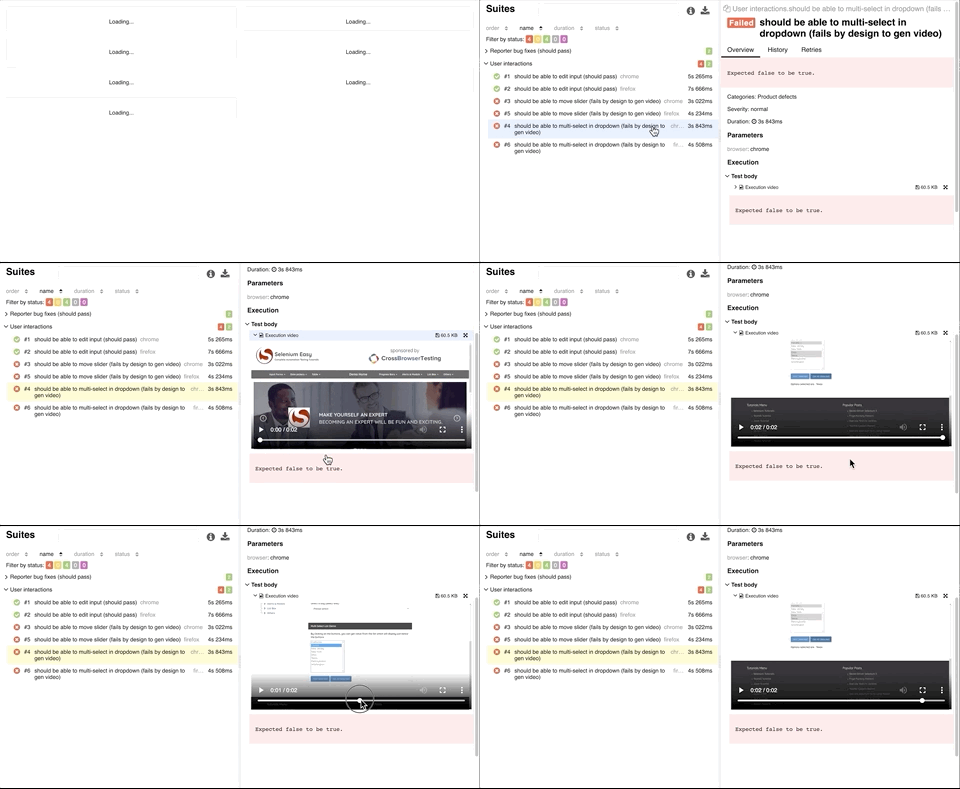
Create a video screen capture of your tests and enhanced your Allure reporting easily!
This is a WebdriverIO reporter that generates videos of your test executions. If you use it in combination with the Allure Reporter, then the test cases automatically get decorated with the videos as well (see example project).
As this reporter is using the saveScreenshot command to render the video it supports all environments including mobile environments.
That said, taking a screenshot after almost every command can slow down your tests. Also, note that the videos don't include alert-boxes and popups.
Installation
First, install the reporter:
npm install --save-dev wdio-video-reporter
or
yarn add --dev wdio-video-reporter
Then add the reporter to your configuration:
 reporters: [
    ['video', {
      saveAllVideos: false,       // If true, also saves videos for successful test cases
      videoSlowdownMultiplier: 3, // Higher to get slower videos, lower for faster videos [Value 1-100]
    }],
  ],
Usage
With Allure Reporter
Adding the Allure reporter as well automatically updates the reports with videos without any need to configure anything :-)
 reporters: [
    ['video', {
      saveAllVideos: false,       // If true, also saves videos for successful test cases
      videoSlowdownMultiplier: 3, // Higher to get slower videos, lower for faster videos [Value 1-100]
    }],
    ['allure', {
      outputDir: './_results_/allure-raw',
      disableWebdriverStepsReporting: true,
      disableWebdriverScreenshotsReporting: true,
    }],
  ],
With wdio-html-nice-reporter
Adding the html nice reporter automatically updates the reports with videos without any need to configure anything 🙂
 reporters: [
    ['video', {
      saveAllVideos: false,       // If true, also saves videos for successful test cases
      videoSlowdownMultiplier: 3, // Higher to get slower videos, lower for faster videos [Value 1-100]
      outputDir: './reports/html-reports/',
    }],
    ['html-nice', {
          outputDir: './reports/html-reports/',
          filename: 'report.html',
          reportTitle: 'Test Report Title',
          linkScreenshots: true,
          //to show the report in a browser when done
          showInBrowser: true,
          collapseTests: false,
          //to turn on screenshots after every test must be false to use video
          useOnAfterCommandForScreenshot: false,
    }],
  ],
Configuration
Most users may want to set these configurations:
saveAllVideos
Set to true to save videos for passing tests.
Type: boolean
Default: false
rawPath
Where to save the screenshots for the video.
Type: string
Default: .video-reporter-screenshots
filenamePrefixSource
Prefix for video filenames by either suite or test name. When using cucumber it will always be suite.
Type: 'suite' | 'test'
Default: test
videoSlowdownMultiplier
Integer between [1-100]. Increase if videos are playing to quick.
Type: number
Default: 3
videoScale
Scaling of video. See https://trac.ffmpeg.org/wiki/Scaling.
Type: string
Default: '1200:trunc(ow/a/2)*2'
videoRenderTimeout
Maximum time to wait for a video to finish rendering (in ms).
Type: number
Default: 5000
outputDir
If it's not set, it uses outputDir.
Type: string
maxTestNameCharacters
Max length of test name.
Type: number
Default: 250
snapshotCommands
Which commands should result in a screenshot (without: /session/:sessionId/).
Type: string[]
Default: ['url', 'forward', 'back', 'refresh', 'execute', 'size', 'position', 'maximize', 'click', 'submit', 'value', 'keys', 'clear', 'selected', 'enabled', 'displayed', 'orientation', 'alert_text', 'accept_alert', 'dismiss_alert', 'moveto', 'buttondown', 'buttonup', 'doubleclick', 'down', 'up', 'move', 'scroll', 'doubleclick', 'longclick', 'flick', 'location']
excludedActions
Add actions where screenshots are unnecessary.
Type: string[]
Default: []
recordAllActions
Skip filtering and screenshot everything. (Not recommended)
Type: boolean
Default: false
screenshotIntervalSecs
Force a screenshot at this interval (minimum 0.5s).
Type: number
videoFormat
Video format (container) to be used. Supported formats: mp4, webm.
Type: string
Default: webm
onlyRecordLastFailure
Only record the last failure when specFileRetries is > 0
Type: boolean
Default: false
Cucumber Support
If you are using the Allure reporter with Cucumber, add useCucumberStepReporter: true to Allure option in wdio.conf.js file, a typical configuration would look like this:
  reporters: [
    ['video', {
      saveAllVideos: false,       // If true, also saves videos for successful test cases
      videoSlowdownMultiplier: 3, // Higher to get slower videos, lower for faster videos [Value 1-100]
    }],
    ['allure', {
      outputDir: './_results_/allure-raw',
      disableWebdriverStepsReporting: true,
      disableWebdriverScreenshotsReporting: true,
      useCucumberStepReporter: true
    }],
  ],
For a complete example, check out the cucumber branch at the wdio-template
Appium Support
Since wdio-video-reporter v1.2.4 there is support to help Allure differentiate between safari and chrome browsers on desktop and devices. The reporter uses the custom property appium:deviceType to id the different devices.
Recommended values are phone and tablet. It is recommended to include browserVersion as well for all browsers to avoid a bug in Chrome webdriver when using devices in same Selenium grid as desktop Chrome browsers.
The generated video files will also get appium:deviceType added to the browser name.
Example Appium configuration:
  "capabilities": [
    {
      ...
      "deviceType": "phone",
      "browserVersion": "73.0-phone-1",
      ...
    }
  ],
And wdio.conf.js:
  capabilities: [
    {
      ...
      'appium:deviceType': 'phone',
      'browserVersion': '73.0-phone-1',
      ...
    },
  ],
Example
Check out the simple template at wdio-template to quickly get up to speed.
Clone one of the repositories and install dependencies with yarn or npm install. Then run yarn e2e or npm run e2e in demo directory and finally yarn report or npm run report to see Allure report.
Contributing
Fork, make changes, write some tests, lint, run tests, build, and verify in the demo that changes work as they should, then make a PR.
The demo folder works with the built version of the library, so make sure to build if you added new features and want to try them out.
Thanks
Thanks to Johnson E for fixing Cucumber support which a lot of users have asked for.
